Install the app
How to install the app on iOS
Follow along with the video below to see how to install our site as a web app on your home screen.
Note: This feature may not be available in some browsers.
This board is now closed. The Blackhole image ended in 2020.
The board will remain available in Read Only Mode, so all the posts from the last 15+ years are not lost.
We thank you for being part of the community for the last 15+ years.
You can join the OpenBh board if you have not already done so at www.openbh.net.
- Home
- Forums
- Black Hole (Archive)
- Blackole Support (Discontinued)
- Vu+ HD Receiver Black Hole Images
- Vu+ Duo2 Black Hole Images
You are using an out of date browser. It may not display this or other websites correctly.
You should upgrade or use an alternative browser.
You should upgrade or use an alternative browser.
Duo2 LCD4Linux lcd display layouts
- Thread starter Ev0
- Start date


Vytenis P.
Vu+ User
Write please some information - what image you are using? Menu is various in all of them and sometimes in their versions toois there away to brightion up my vfd on my duo 2

nunigaia
Moderator
is there away to brightion up my vfd on my duo 2
1 . Regarding LCD4Linux ... StutterTV is not LiveTV ... it´s impossible to handle it ...
2 . To bright VFD ( OpenBH 06 ) ... <MENU>;<SETUP>;<SYSTEM>;<FRONT DISPLAY PANEL>;<SETTINGS>
best regards
nunigaia
Vytenis P.
Vu+ User
Then go to menu Setup > System > Front display panel > Settings and selectI'm using the latest open black hole 0.6 image
"Brightness (Normal)" - brightness in working state (changes you will see immediately)
"Brightness (Standby) - brightness in standby mode (make it darker, because it's seen at night)
I think you understand, that it is not a color LCD, but 140x32 dots b/w VFD

chadmanfoo
Vu+ Newbie
Vytenis P.
Vu+ User
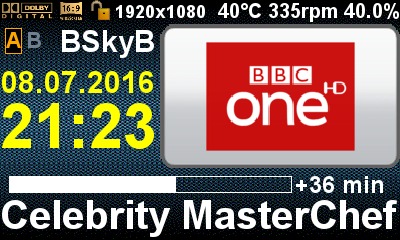
It's good. But your background is named (bg_11.jpg) the same, like a frequently used other background, which is in Ev0's template too.Here's mine. Started as Ev0's template but has been heavily modified. Drop Backgrounds folder into /media/usb/
A better idea, I thing is to give the other name and choose desired one by changing it's name in LCD4linux config


nunigaia
Moderator
do these settings are also good for solo 4k
No ... Solo4k has a different display, so it needs another settings.
For SOLO4K take a look here --> http://www.vuplus-community.net/board/threads/lcd4linux-solo4k.26567/
best regards
nunigaia
Vytenis P.
Vu+ User
Only one clock don't have. Three screens 20 sec picon, audio/video/tuner, 10 sec. current weather & 10 sec. big time with current date:hi are there any files please for big dighi clock please for the lcd 4 please regard simon 123
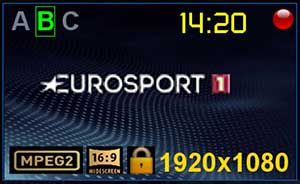
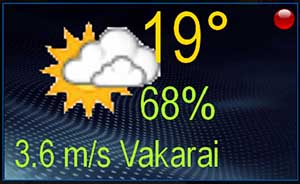
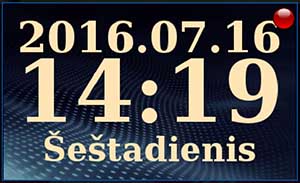
of course, in your Vu + will be your language and date format too
Vytenis P.
Vu+ User
I'll try to teach you how to do it yourself. Open your favorite Internet browser and write your STB's IP address in address field. After pressing Enter, OpenWebif will open. Select LCD4Linux Setup. Will open new window with a tab General and Element "other". Select LCD1 Type Internal Vu+ Duo2 LCD 400x240, other (LCD2, 3) select 'off'. Push 'set settings' on the bottom. Then go to Element "Screen" and select Active Screen > Screen 1 and Screens used for Changing select Screen 1 too (if you need one screen all the time). Push 'set settings' on the bottom. Than select Modus 'On' on above. If you need only a Clock and nothing more, as you wrote, look all bolded and coloured entries in the 'Element' part to switch any screen to off except the Clock. When selected Clock, select Screen 1, LCD1, type select 'Time', size select 90-120, regardless font type, you'll select on the bottom line. 'Position' about 50 (digits to be in center), 'Aligning' Center, 'Color' select by your taste. The result you'll see on the top immediately. After you'll be glad with your clock view, push 'set settings' on the bottom. After it you can "copy to Media" and "copy to Idle" to make your work faster. But anyhow you must go to Modus Media and Idle to ensure, that all other Element switched off, except 'Clock' (on Iddle Element 'LCD Display' Screens used for Changing select Screen 1. That's all if I did not miss anything
saeed.agha
Vu+ Newbie
Hi to all
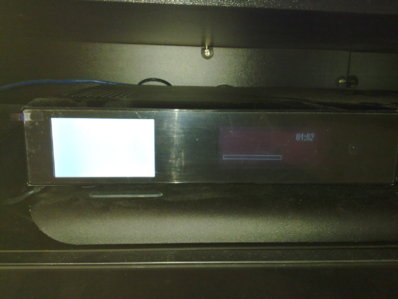
please help me . from yesterday LCD in duo2 only shows white screen and no clock , picture , programs and .... . I only can increase and decrease the brightness from 0 to 10 .
I clean flashed it but nothing changed .
the picture attached . you can see it .
please help me .
please help me . from yesterday LCD in duo2 only shows white screen and no clock , picture , programs and .... . I only can increase and decrease the brightness from 0 to 10 .
I clean flashed it but nothing changed .
the picture attached . you can see it .
please help me .